UniFi Endpoint
- 4.6
- Rating
- 100.00K
- Installs
- Free
- Price

 Analysis by App-foxy
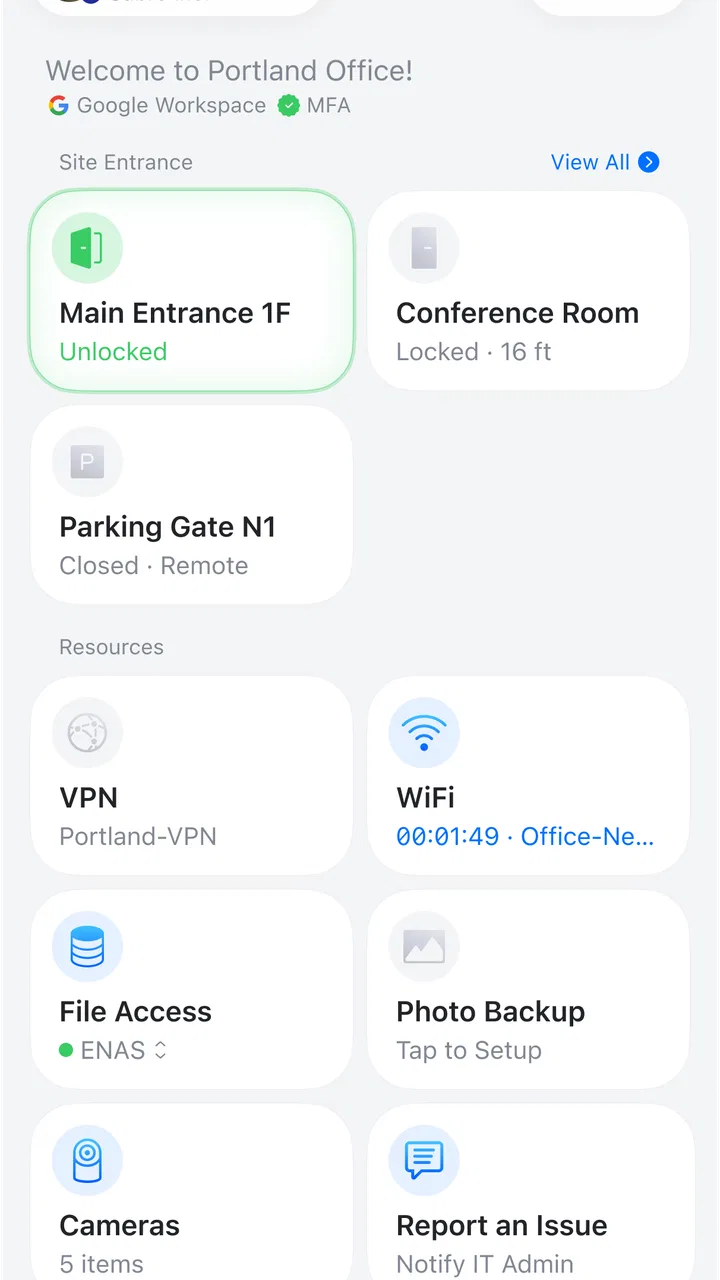
UniFi Endpoint is a free business app from Ubiquiti Inc. that focuses on a very specific job: connecting a compatible UniFi endpoint with as little effort as possible. I tested it with the mindset of someone who wants a practical tool rather than another dashboard full of menus, and that narrow purpose is both its biggest strength and its main limitation. When the connection is the task in front of me, the app feels direct. When I want broad network administration or detailed device management, I quickly reach for a different UniFi tool.
The app’s store summary, “One-Click Connection,” describes its character well without telling the whole story. It is not trying to replace every business networking utility. Instead, it is useful at the moment when a phone needs to establish contact with a UniFi endpoint cleanly and efficiently. That makes it especially relevant for installers, support staff, small businesses, and anyone who regularly moves between devices or locations.
How UniFi Endpoint fits into a real workday
My baseline workflow is simple. I start with the endpoint ready, open the app, and use it as the connection point rather than treating it like a permanent command center. That distinction matters. If I am setting up equipment at a desk, checking a device during a site visit, or helping a colleague get a UniFi endpoint online, a focused connection tool keeps me from wandering through unrelated settings.
You May Also Like

 Blood Strike: 2.5 Anniversary
Blood Strike’s Loadouts Turn Every Drop Into a Tactical Gamble
A close look at Blood Strike’s custom loadouts: how fast access to signature weapons reshapes its battle royale rhythm, rewards preparation, and narrows the gap between fights.

 Pandora - Music & Podcasts
Pandora’s Music Is Easy to Start, but Harder to Recover
Pandora’s strength is its low-effort path from a seed to a station. Its weak spot is how much confidence it asks you to place in connection, setup, and quiet recovery.

 8 Ball Pool
 Is Built on Rivalries, Rematches, and Routine
A close look at the rivalries, rematches, shared routines, and unanswered safety questions that turn a quick pool match into a persistent mobile community.

 Samsung Music
’s Quiet Strength Is Playing What You Already Own
Its reach comes less from spectacle than from dependable access to a personal library. That simplicity is both the app’s strongest retention engine and its ceiling.

 AccuWeather: Weather Radar
AccuWeather Review: A Quick, Clear Forecast for Everyday Decisions
For everyday plans, the best forecast is the one you can understand quickly. AccuWeather makes rain timing, radar, and local conditions easy to act on, with a few trade-offs.

 Hill Climb Racing
Why Hill Climb Racing Still Turns Crashes Into One More Run
A tiny car, a bumpy hill and one more upgrade: Hill Climb Racing keeps resurfacing because its simple chaos makes every near-miss feel personal.
More From Our News Desk



A realistic example is a small office move. The network equipment has been placed in a new room, and I need to connect a phone to the relevant endpoint while standing beside the hardware. Instead of opening a general-purpose network utility and searching through several layers of administration, I use UniFi Endpoint for the initial connection. Once that immediate task is complete, I can return to the broader UniFi management environment if configuration, monitoring, or troubleshooting is required.
This separation of jobs makes the app easier to understand. I would not install it expecting a complete overview of a company’s network. I would install it because the first connection or direct endpoint interaction needs to be quick. For a technician who repeats that action throughout the day, removing unnecessary steps is more valuable than adding a long list of advanced controls.
The app is available at no cost, carries an Everyone content rating, and runs on Android devices using version 7.0 or later. Those details make it approachable for mixed device fleets, although business teams should still check their own phone policies before standardizing on it. A free app is convenient for occasional use, but the real question is whether its focused workflow matches the way a team handles UniFi equipment.
On the product page, it has a 4.7 average from around 4.7 thousand ratings, with over 100 thousand installs. I see those figures as a sign that the basic connection idea is resonating with users, not as proof that it will solve every networking problem. A high rating can tell me that the central action works well for many people; it cannot turn a narrowly designed endpoint utility into a full administration suite.
What I check before relying on it
Before using the app in a live support situation, I make sure the phone is prepared. I keep the device unlocked, confirm that I am working near the intended endpoint, and avoid beginning the process while switching between several unrelated wireless networks. These are ordinary habits, but they reduce the chance of blaming the app for a connection problem caused by the surrounding environment.
I also identify the next step before opening the app. If I only need a direct connection, UniFi Endpoint is a sensible starting point. If I already know that I must inspect a larger UniFi deployment, review broader settings, or manage several parts of the network, I use the appropriate administration tool instead. This small decision saves time because I do not ask a connection-focused app to perform a management job it was not designed to handle.
One useful habit is to treat the first successful connection as a checkpoint rather than the end of every task. I note which endpoint I connected to and what I intended to do next. In a busy office, several devices may look similar, and a quick connection can be mistaken for successful completion. The app helps with the connection step, but the human workflow still needs a clear handoff to configuration, testing, or documentation.
Settings and permissions worth checking
The most important settings are not necessarily inside the app. I check the phone’s wireless state, make sure the app is current, and confirm that the device is allowed to communicate in the way the endpoint requires. If the phone is aggressively restricting background activity or has unusual network controls enabled, I temporarily review those choices before troubleshooting.
I also pay attention to the difference between a connection problem and an endpoint problem. If the app cannot complete the connection, I first move closer to the hardware and simplify the environment. I avoid testing from behind several walls, through a crowded wireless area, or while the phone is using a different connection path than expected. This is a practical diagnostic sequence: change one condition at a time, then try again.
For a team, consistency matters more than individual cleverness. I would create a short internal routine: verify the intended endpoint, open UniFi Endpoint, complete the connection, record the result, and only then move to the broader management process. That repeatable pattern is more useful than asking every employee to discover their own method.
The current version is 3.7.9, and I would keep it aligned across company phones where possible. Mixed versions can make support conversations harder, especially when one person describes a screen or behavior that another person does not see. Keeping the application updated is not a guarantee against every issue, but it gives a team a common starting point.
Faster patterns for repeat users
The quickest users are not necessarily tapping faster. They prepare the context before launching the app. I keep the phone ready, stand near the equipment, and decide whether I am connecting for setup, verification, or handoff. That removes hesitation from the process and makes the one-click approach feel genuinely useful.
For repeated installations, I would pair the app with a simple checklist. The checklist can include the endpoint label, the intended location, the person responsible for the next step, and a final confirmation that the connection was actually used for its intended purpose. UniFi Endpoint handles the direct interaction; the checklist prevents a fast connection from becoming an undocumented one.
Another effective pattern is to use the app at defined transition points. For example, I might connect during initial placement, again after the endpoint is moved into its final position, and once more during handoff. I would not open it constantly just to feel productive. Its value comes from making specific connection moments faster and more repeatable.
When supporting someone remotely, I would ask them to describe what they see only after they have followed the same preparation steps. “Open the app and try again” is weak support advice. “Stand beside the intended endpoint, simplify the phone’s connection state, launch the app, and tell me whether the connection completes” produces a much clearer result. The app’s focused design makes that kind of instruction easier to communicate.
There is also a useful trade-off in keeping this tool separate from a larger UniFi application. A broader app may offer more context in one place, but that context can slow down a simple connection task. UniFi Endpoint is better when the user already knows what needs to be connected. A general network utility is better when the user is still discovering devices, investigating topology, or changing wider settings.
Where the focused design reaches its limits
The main limitation is scope. I would not choose UniFi Endpoint as my only business networking app. A connection is often just the first step, and the rest of the job may involve administration, monitoring, diagnostics, or documentation elsewhere. Users who expect one app to cover all of those stages may find the experience incomplete.
That is not necessarily a flaw in the connection workflow. It is a reminder to place the app correctly in the toolchain. For a technician, the app can be the fast front door to an endpoint. For an office manager who wants a complete overview of network health, it is unlikely to be enough on its own. For a home user with no UniFi equipment, there is little reason to choose it over a normal network utility.
The app also depends on conditions outside its control. Distance, wireless interference, phone configuration, endpoint state, and the surrounding UniFi setup can all affect the result. A one-click design reduces user effort, but it cannot eliminate physical or network problems. When a connection fails, I resist repeating the same tap indefinitely. I check the environment, confirm the intended hardware, and then decide whether the next step belongs in a wider UniFi management tool.
Another limitation is that simplicity can hide the reason for a failure. A specialist may want detailed diagnostic information immediately, while a streamlined connection app may simply make the user aware that the action did not complete. In that situation, UniFi Endpoint is still useful as a first test, but not as the complete investigation.
Businesses should also think about training. The app is easy to explain when the task is “connect to this endpoint,” but employees need to know what happens afterward. Without that context, someone may report success because the app opened or because a device appeared, even though the actual installation or configuration remains unfinished. A two-minute procedure can prevent that misunderstanding.
Who should use it, and who should skip it
I recommend UniFi Endpoint to people who work directly with compatible UniFi equipment and value a quick, repeatable connection step. Installers, on-site support workers, small business technicians, and experienced UniFi users are the clearest audience. It is also a reasonable addition to a company phone when several staff members occasionally need to connect to endpoints without learning a full administration interface.
I would skip it if I needed a general-purpose network scanner, a complete device inventory, or a single place to manage every UniFi service. I would also skip it if I did not use UniFi endpoints at all. The app’s narrow focus is an advantage only when it matches the job.
Compared with a broader networking app, this one feels less useful for exploration but more purposeful for a known connection task. Compared with using a web interface or a full UniFi management application, it can reduce the number of decisions required at the start. The best choice depends on whether I am trying to connect quickly or understand and control a larger system.
My mastery verdict after building a routine
UniFi Endpoint works best when I stop treating it as a miniature network command center and start treating it as a reliable connection instrument. The strongest results come from combining its focused action with good habits: prepare the phone, identify the correct endpoint, stay close to the hardware, use the app at a deliberate transition point, and document what happens next.
That approach also makes its boundaries clear. The app can shorten the beginning of a workflow, but it does not replace the judgment needed to verify equipment, diagnose a difficult environment, or manage a wider deployment. Users who understand that division will probably appreciate its simplicity more than users who expect a complete business networking platform.
Ubiquiti Inc. has positioned this as a free business utility, and my experience fits that description. It is a practical companion for direct endpoint connections, not a universal answer for every UniFi task. The Everyone rating and Android 7.0 minimum make it easy to consider for many phones, while the strong average rating suggests that its central purpose is landing well with a substantial user base.
My recommendation is straightforward: install it if your work repeatedly begins with connecting to UniFi endpoints and you want a cleaner routine for that moment. Keep a broader UniFi management option available for everything that follows. Used in that role, UniFi Endpoint is refreshingly focused, and its best feature is not a long list of controls but the way it removes friction from a specific, recurring job.
FAQs for UniFi Endpoint
01What is UniFi Endpoint and how does it work?
UniFi Endpoint is an enterprise-grade network management application designed to streamline the setup, monitoring, and control of network devices. It provides real-time analytics, device configuration, and network diagnostics, all from a centralized dashboard. The app is compatible with both Android and iOS, making it easy for IT professionals to manage their networks on the go.
02Is UniFi Endpoint suitable for small businesses or only large enterprises?
While UniFi Endpoint is designed to handle complex networks typical of large enterprises, it is also scalable and can be tailored to fit the needs of small to medium-sized businesses. Its intuitive interface and robust feature set make it an excellent choice for any organization looking to efficiently manage network resources.
03What are the key features of UniFi Endpoint?
Key features of UniFi Endpoint include real-time network monitoring, device configuration, advanced security protocols, and detailed analytics. The app also supports seamless integration with other UniFi products, ensuring a cohesive and comprehensive network management experience. With its user-friendly interface, it simplifies complex networking tasks.
04Are there any costs associated with using UniFi Endpoint?
UniFi Endpoint offers a range of pricing plans tailored to different business needs, which may include a subscription fee. While the app itself can be downloaded for free, access to advanced features and additional support may require a paid plan. It’s advisable to check the latest pricing details on their official website before downloading.
05What are the system requirements for installing UniFi Endpoint?
For Android users, UniFi Endpoint requires at least Android 8.0 (Oreo) or later, while iOS users need a device running iOS 12.0 or later. Ensuring your device meets these requirements will allow for optimal performance and access to all the app’s features. Regular updates may introduce additional requirements.
Pros
- Intuitive user interface for easy navigation.
- Real-time monitoring of network performance.
- Seamless integration with other UniFi devices.
- Customizable alerts for immediate notifications.
- Comprehensive analytics for detailed insights.
Cons
- Requires UniFi hardware for full functionality.
- Limited offline capabilities without internet.
- Initial setup can be time-consuming.
- Advanced features may overwhelm beginners.
- Occasional connectivity issues reported.

UniFi Endpoint
Gallery